Changelog

What's new in MailCheap, newest first. Customers see each update in their dashboard too.

  1. Change a contact's status

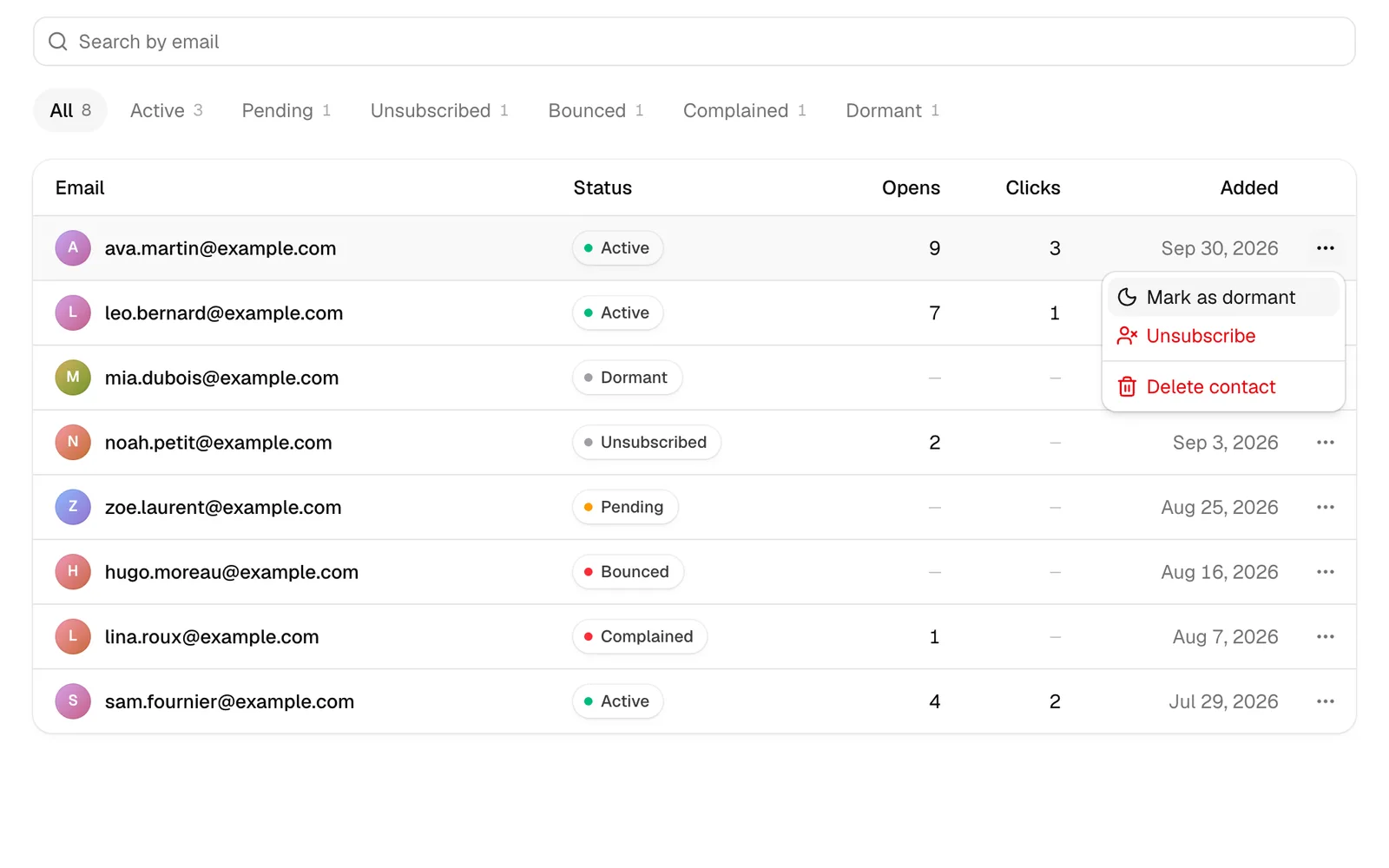
    Each contact's menu, at the end of their row, changes their status: mark an active contact dormant to stop your issues to them for a while, mark a dormant or pending one active, unsubscribe them, or resubscribe someone who unsubscribed.

    Resubscribing someone, or making active a contact who never clicked your confirmation email, asks you to confirm they asked for your emails, and MailCheap keeps who did it and when. Bounced and complained contacts keep their status.

    The API and AI assistants do the same with update_contact_status.

    The contacts list, with an active contact's menu open on mark as dormant, unsubscribe and delete.
  2. Themes for your newsletter

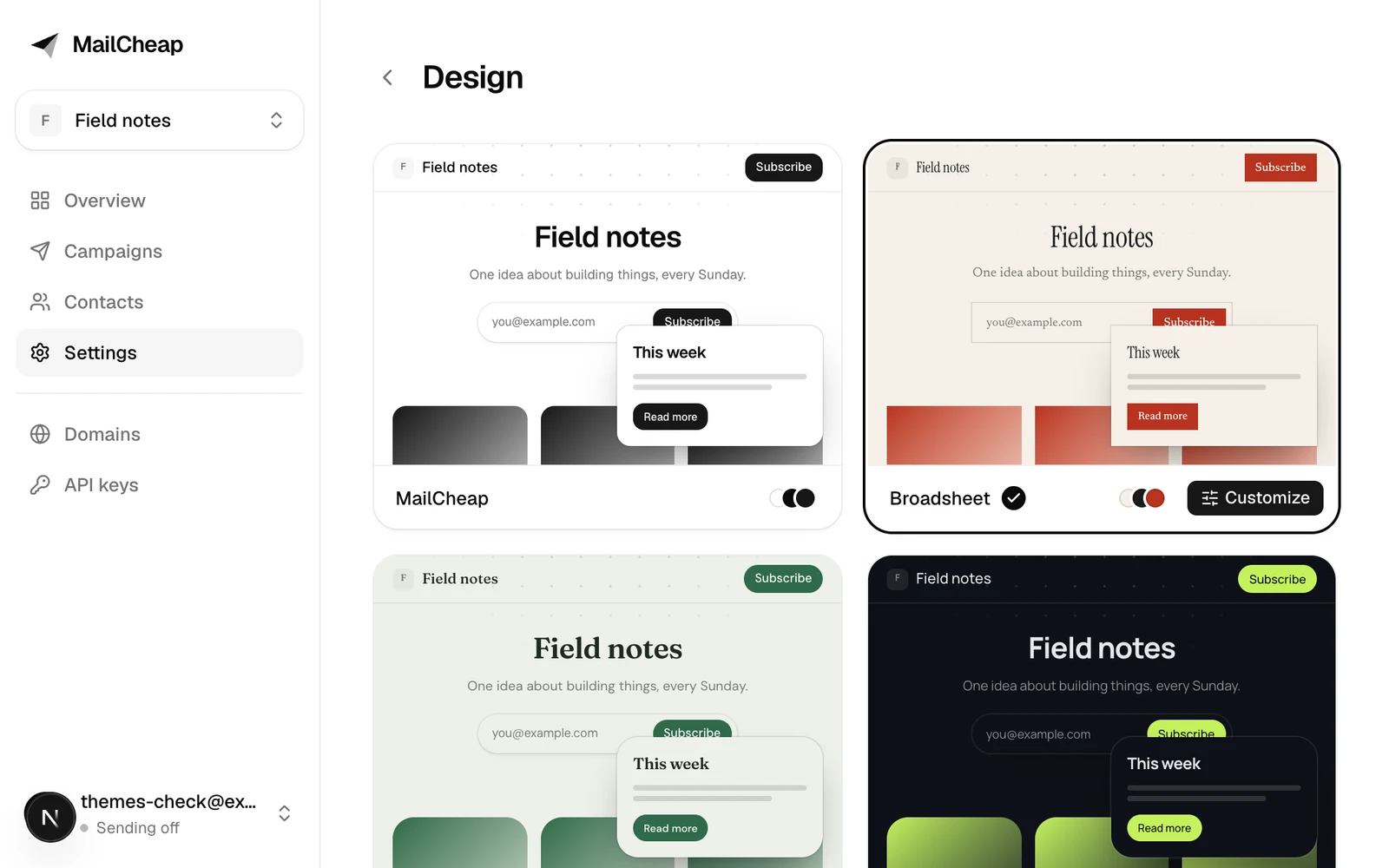
    Settings, then Design, shows eight themes, each with your newsletter's website and one of your emails in it. A click applies one, and a message lets you undo it.

    Customize changes its colors, fonts, heading weight, corners, shadow and spacing, with your website and an email shown as you go.

    Your website, the pages your emails link to and your emails all follow it. Your AI assistant can set it too, through the API or MCP.

    The Design page's themes, each card showing the newsletter's website and an email in that theme, Broadsheet applied.
  3. Settings at a glance

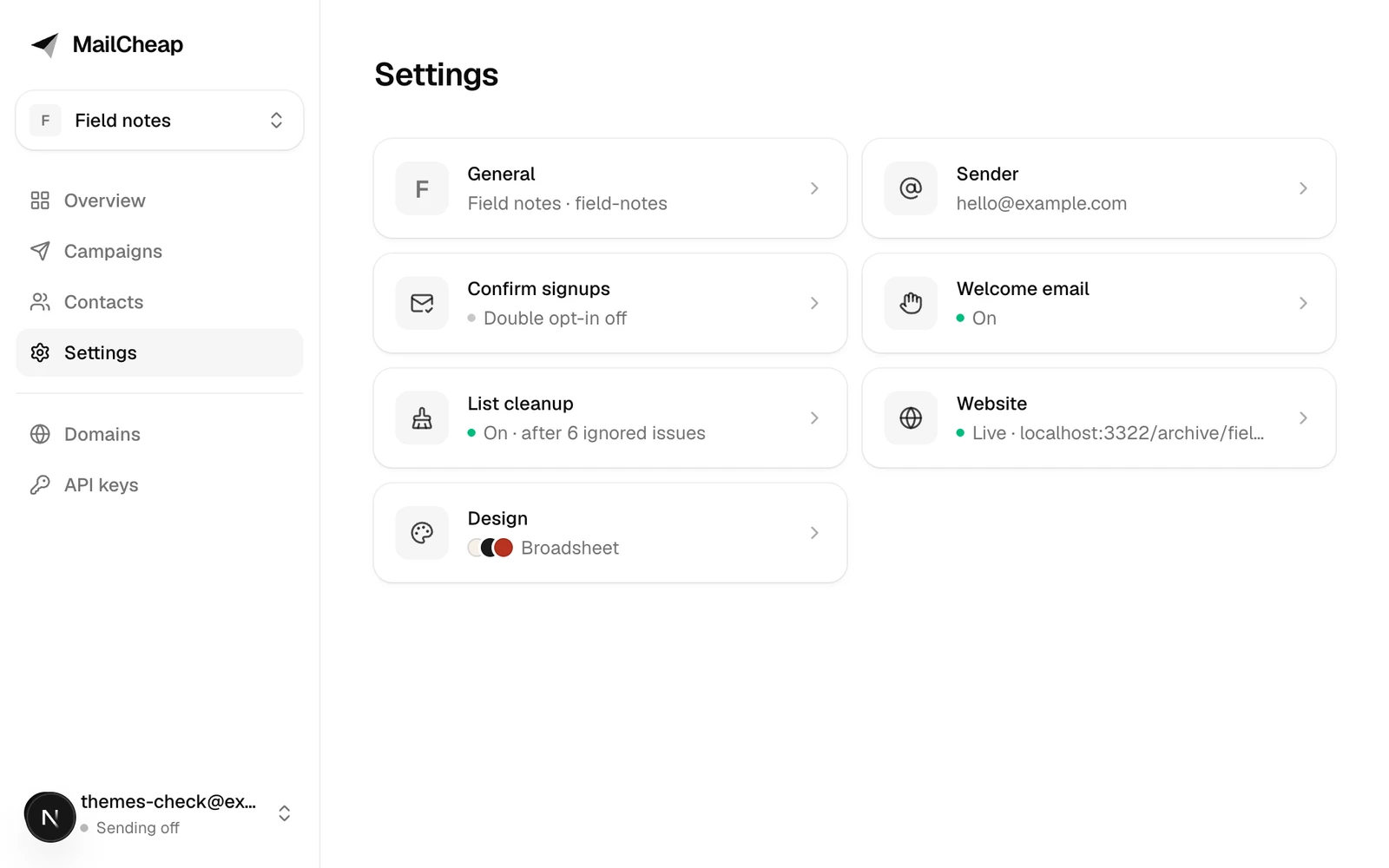
    Settings opens on an overview of your newsletter: a card for each section, with where it stands, like double opt-in on or your website's address.

    A card opens its section's page, with its own save bar. Design is one of them.

    The settings overview: general, sender, confirm signups, welcome email, list cleanup, website and design, each with where it stands.
  4. Help center

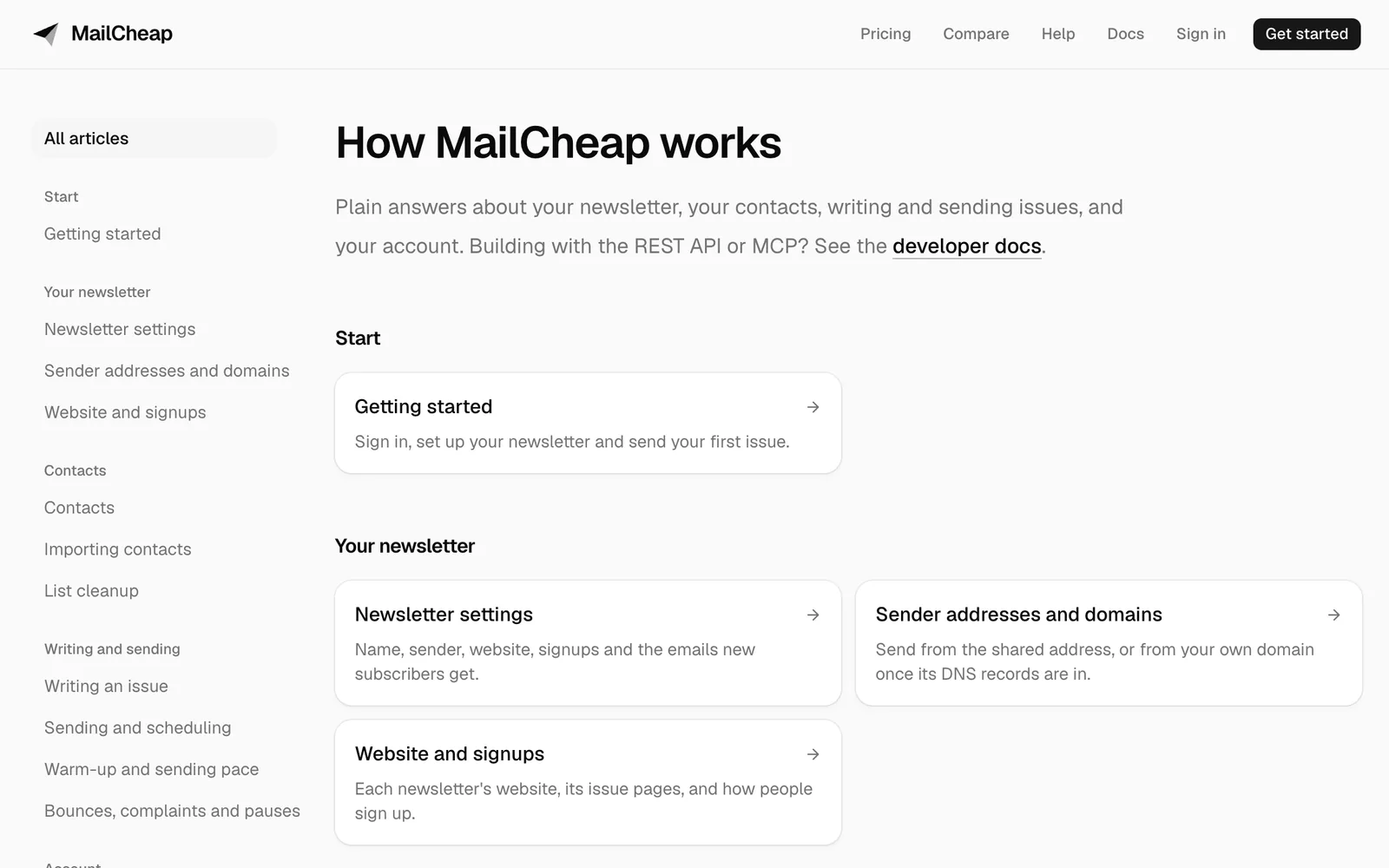
    The help center explains each part of MailCheap: setting up your newsletter, contacts and imports, writing, sending and scheduling, the warm-up, deliverability, plans and your account.

    Open it from your account menu in the dashboard, or from the site's header. Notes in the dashboard, like the warm-up's, link to the article that explains them.

    The help center's articles, grouped by start, your newsletter, contacts, writing and sending, and account.
  5. Picture toolbar and alt text

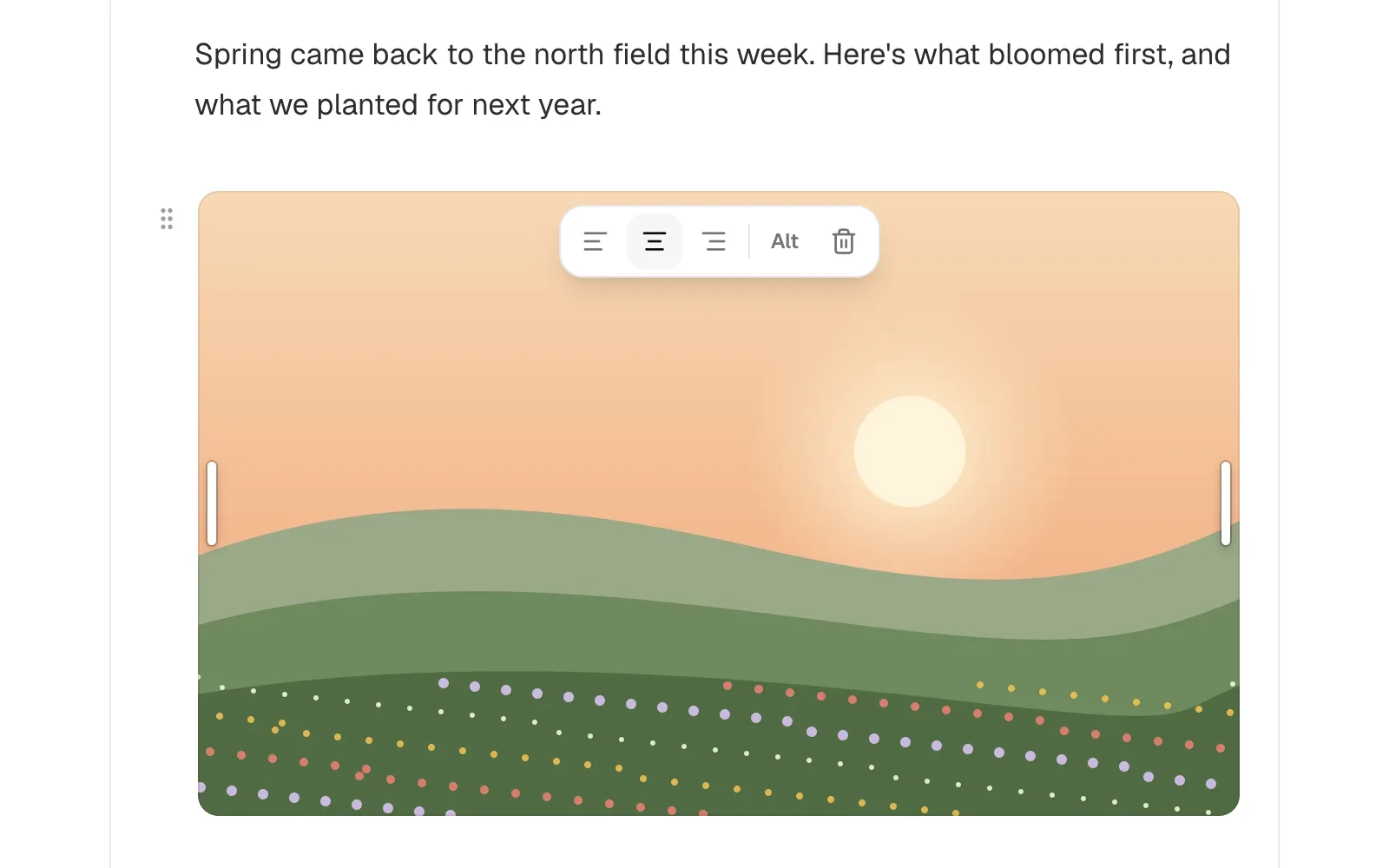
    Point at a picture in the editor and its toolbar shows inside its top edge: left, center or right, Alt and delete. On a phone, tap the picture.

    Alt text describes the picture to screen readers, to readers whose email app blocks pictures, and to search engines on your newsletter's website. It saves as you type.

    Your emails and your website keep each picture where you put it.

    A picture in the editor with its toolbar: align left, center and right, Alt and delete.
  6. Move blocks by their grip

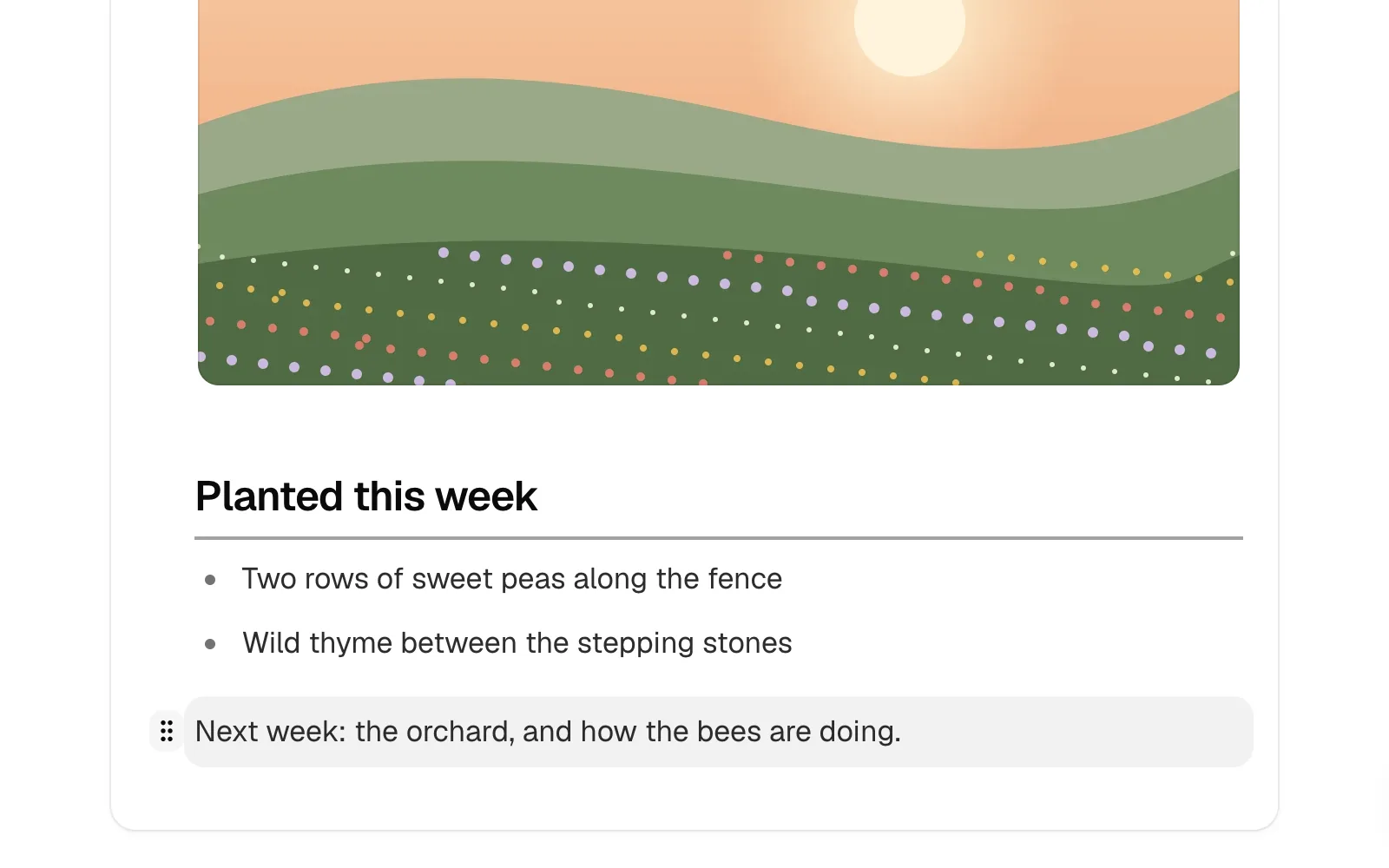
    Point at a block in the editor and a grip shows to its left. Drag it, and a line shows where the block lands. Click the grip to select the block.

    With the keyboard, Cmd+Shift+Up and Down move the block holding the cursor (Ctrl+Shift on Windows). Undo puts it back.

    A paragraph dragged by its grip, with the line where it will land.
  7. Preview in Gmail on a phone

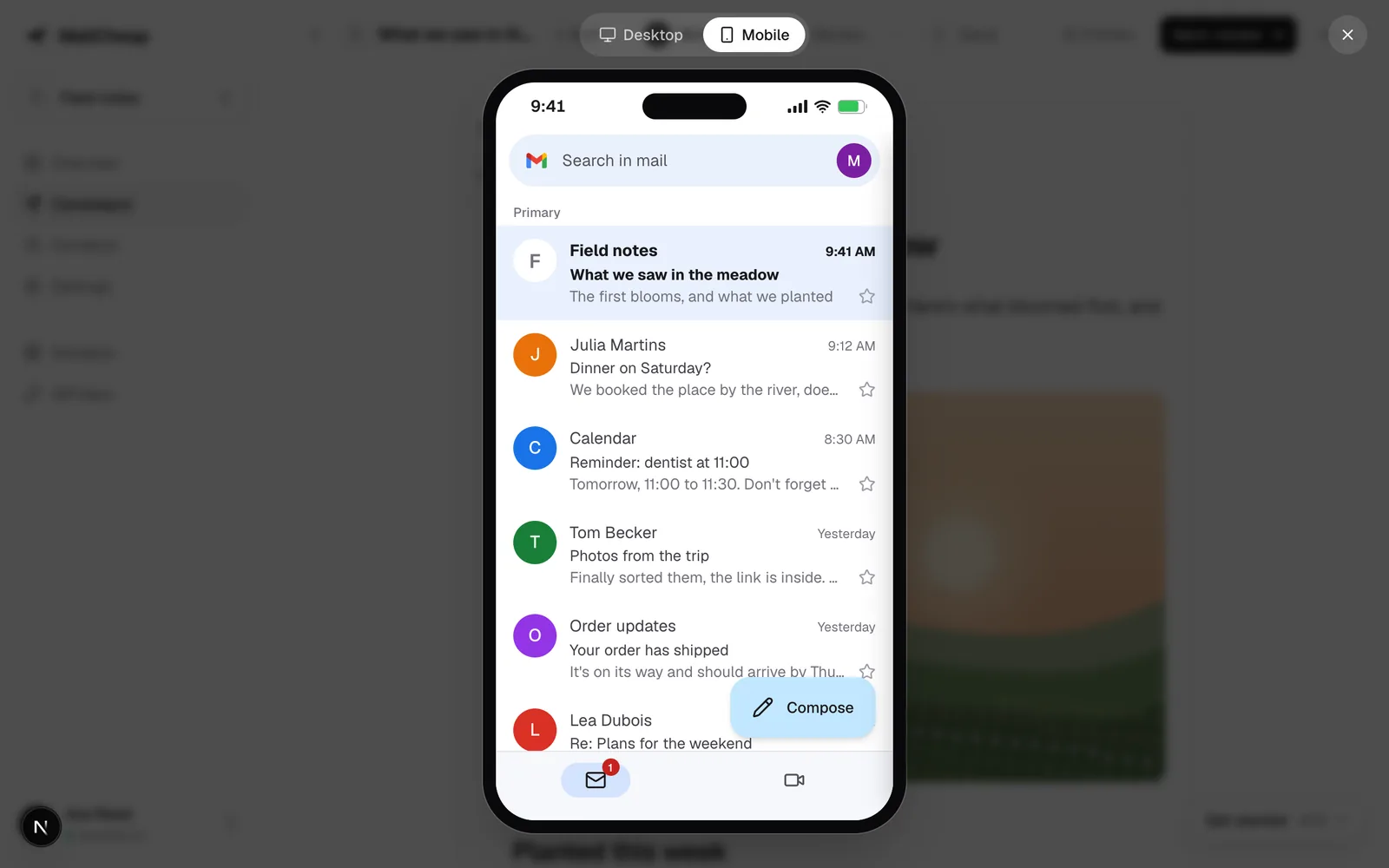
    Preview's Mobile view shows Gmail on an iPhone, with your issue on top of the inbox: its sender, subject and preview text. Tap it to open the email, then scroll it as in Gmail.

    Desktop shows the email in a mail app's window, as wide as your screen allows. Escape closes the preview.

    The preview showing an issue at the top of a Gmail inbox on an iPhone.
  8. Review checks the email

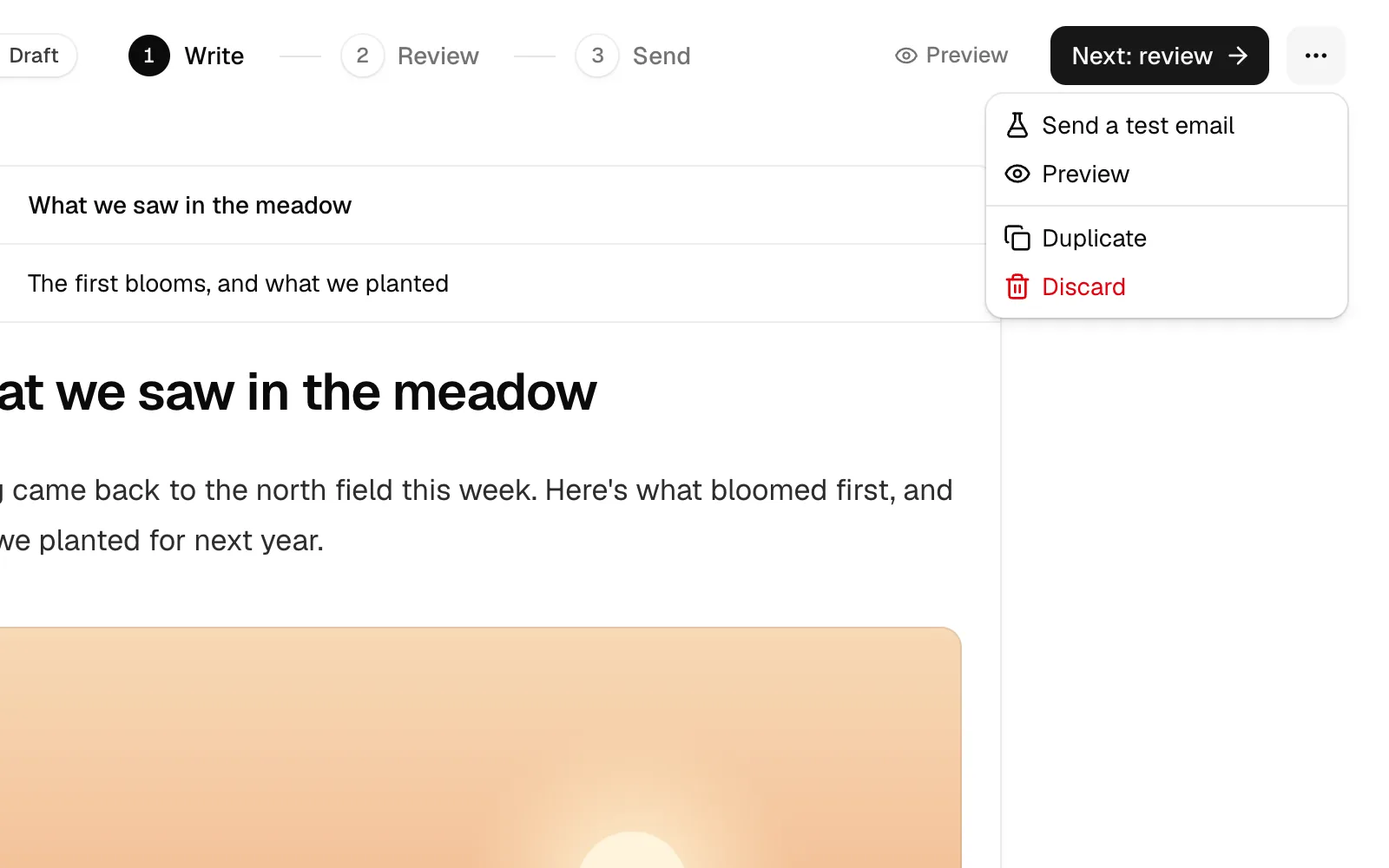
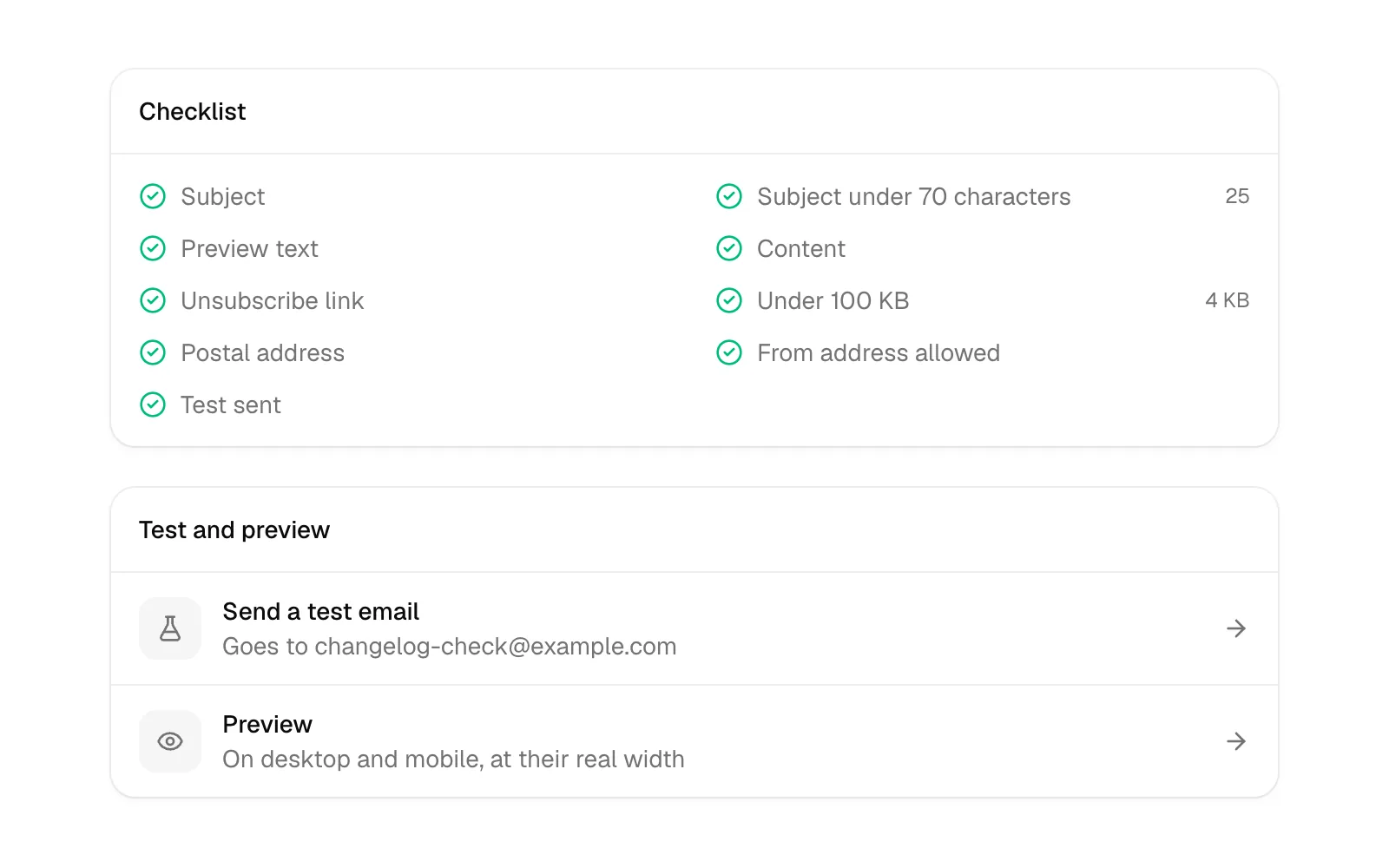
    A campaign goes Write, Review, Send. Review lists the email's own checks: the subject and its length, preview text, content, unsubscribe link, size, postal address, sender and a test sent.

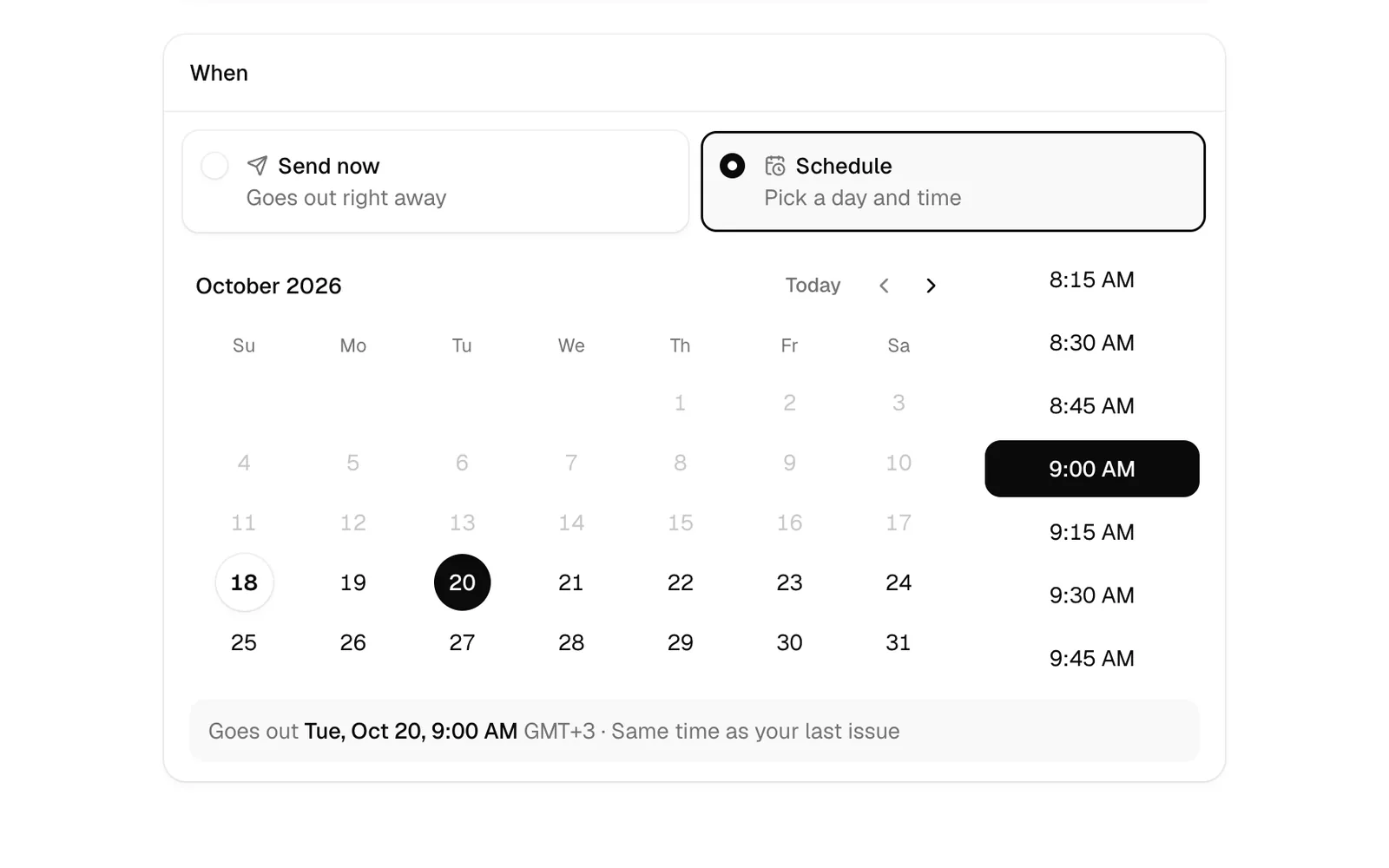
    What would stop a send shows when you press Send or Schedule. A send goes to everyone on your list, unless a filter narrows it to your most engaged contacts.

    The review step's checklist of the email's checks.