HelpYour newsletter
Website analytics
Google Analytics, Tag Manager, the Meta pixel and other scripts on your website: where each ID is and how to check it works.
Add a tool
Your newsletter's website can load Google Analytics, Google Tag Manager and the Meta pixel, so you see its visitors, where they come from and who subscribes in the tools you already use. MailCheap adds each tool's code to your website: all it needs is the tool's ID.
- Open the Website page of your newsletter's settings, down to its Analytics card.
- Paste the tool's ID in its field: the sections below say where each tool shows it. The code a tool asks you to paste on your site works too: the field keeps the ID in it.
- Click Save. Your website's pages load the tool from then on.
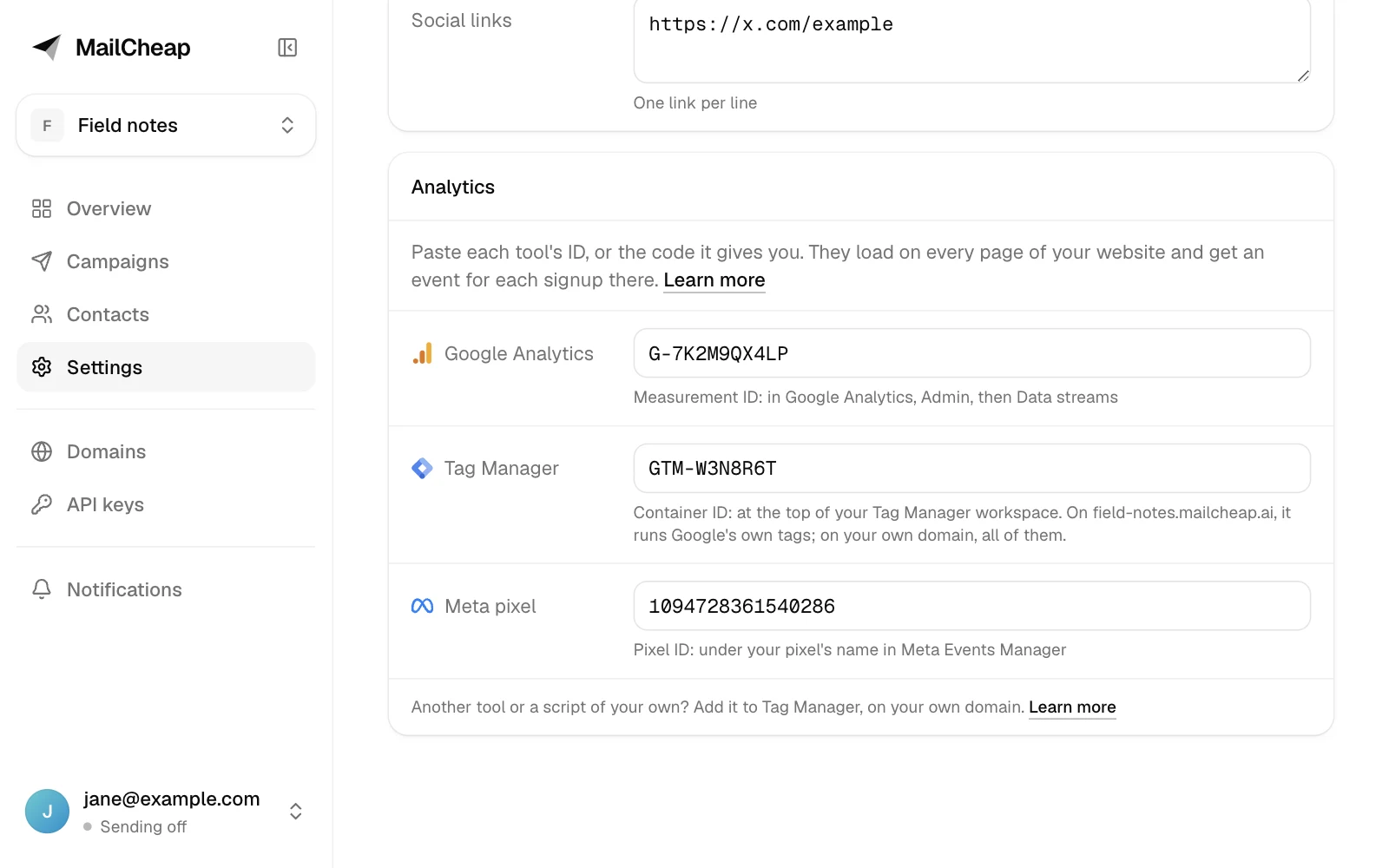
Each tool loads on every page of your website: its home page, each issue's page and your author page. Not in your emails, whose opens and clicks are in each campaign's report, nor on the unsubscribe and confirmation pages your emails link to. To remove a tool, clear its field and save.
Moving from Substack or beehiiv? Paste the IDs you had there, and your reports go on in the same Google Analytics property, Tag Manager container and pixel.
Google Analytics
- In Google Analytics, open Admin, the gear at the bottom left, then Data streams, under Data collection and modification.
- On the Web tab, click your website's stream. No stream yet? Click Add stream, then Web, and enter your website's address, like
your-newsletter.mailcheap.ai. - Copy the measurement ID, in the first row of the stream's details. It starts with
G-, likeG-PSW1MY7HB4. - Paste it under Google Analytics on the Website page, and save.
To check, open your website in a new tab, then Reports and Realtime in Google Analytics: your visit shows within a minute. An ID that starts with UA- is from Universal Analytics, which no longer collects data: use your GA4 stream's.
Each signup on your website sends a sign_up event. To count signups as conversions, open Admin, then Key events under Data display, click New key event and name it sign_up. Keep the stream's Enhanced measurement on, as it is unless you turned it off: it counts each page a reader opens after the first.
On your own domain, give your website the same measurement ID as your main site when it's one of its subdomains: a reader who goes from one to the other counts as one visitor.
Google Tag Manager
Tag Manager loads the tags you set up in your container, like Google Analytics or Google Ads conversions.
- In Tag Manager, open your container. Its ID, which starts with
GTM-, is at the top of the Workspace tab. - Paste it under Tag Manager on the Website page, and save.
- In Tag Manager, add your tags and their triggers, then click Submit and Publish: none of them run until you publish.
Each signup on your website adds a sign_up event to the data layer. To fire a tag on it, give the tag a Custom Event trigger with sign_up as its event name.
To check, click Preview in Tag Manager, enter your website's address and click Connect: Tag Assistant lists the tags that fire on each page.
Sending Google Analytics or the Meta pixel from Tag Manager? Leave its own field empty on the Website page, or each visit counts twice.
On your-newsletter.mailcheap.ai, Tag Manager runs Google's own tags, like Google Analytics and Google Ads, since other newsletters' websites share that domain. Custom HTML, custom templates and other companies' tags don't run there, nor variables that read cookies or JavaScript. On your own domain, every tag in your container runs, your own scripts included.
Meta pixel
- In Meta Events Manager, click Data sources in the left menu.
- Pick your pixel. Its ID, 15 or 16 digits, is under its name, and in its Settings as the dataset ID.
- Paste it under Meta pixel on the Website page, and save.
The pixel sends a PageView on every page and a CompleteRegistration for each signup on your website. Pick it as your ads' conversion event to see which ads bring you subscribers.
To check, open your pixel's Test events tab in Events Manager, enter your website's address and click Open website: your visit shows while that tab stays open.
Other tools and your own scripts
Another tool, like Clicky, Plausible or a chat widget, or a script of your own, goes on your website through Tag Manager, on your own domain:
- Put your website on your own domain, and add your Tag Manager container ID on the Website page, as above.
- In Tag Manager, open Tags, then click New. Under Tag Configuration, pick Custom HTML and paste the tool's code.
- Under Triggering, pick All Pages. Name the tag and save it.
- Click Submit, then Publish.
The script then runs on every page of your website on your own domain. On your-newsletter.mailcheap.ai, Tag Manager leaves it out, as it does every tag that isn't Google's. The fields on the Website page only take Google Analytics, Tag Manager and Meta pixel IDs: code pasted there never runs.
What each signup sends
| Tool | Event |
|---|---|
| Google Analytics | sign_up |
| Tag Manager | sign_up, in the data layer |
| Meta pixel | CompleteRegistration |
It goes out when someone subscribes with your website's form or its popup. With confirmed opt-in on, that's when they fill in the form, before they click the link in their email. MailCheap sends the event alone, without their email address. The form on your own site doesn't send it.
Cookies and consent
Google Analytics, the tags in your container and the Meta pixel set cookies in your visitors' browsers. Where your readers live, like in the EU or the UK, the law can ask you to tell them and get their consent first. Name these tools in your privacy policy, and check what applies to your readers.
Still stuck? Chat with us from your dashboard.